Pairing this instance
Every path that connects a real Microsoft 365 tenant — production Docker Compose or the Azure deploy — arrives at the same screen: Pair this instance. A fresh install has no Entra app registration yet, so there is nobody to sign in as until this step completes.
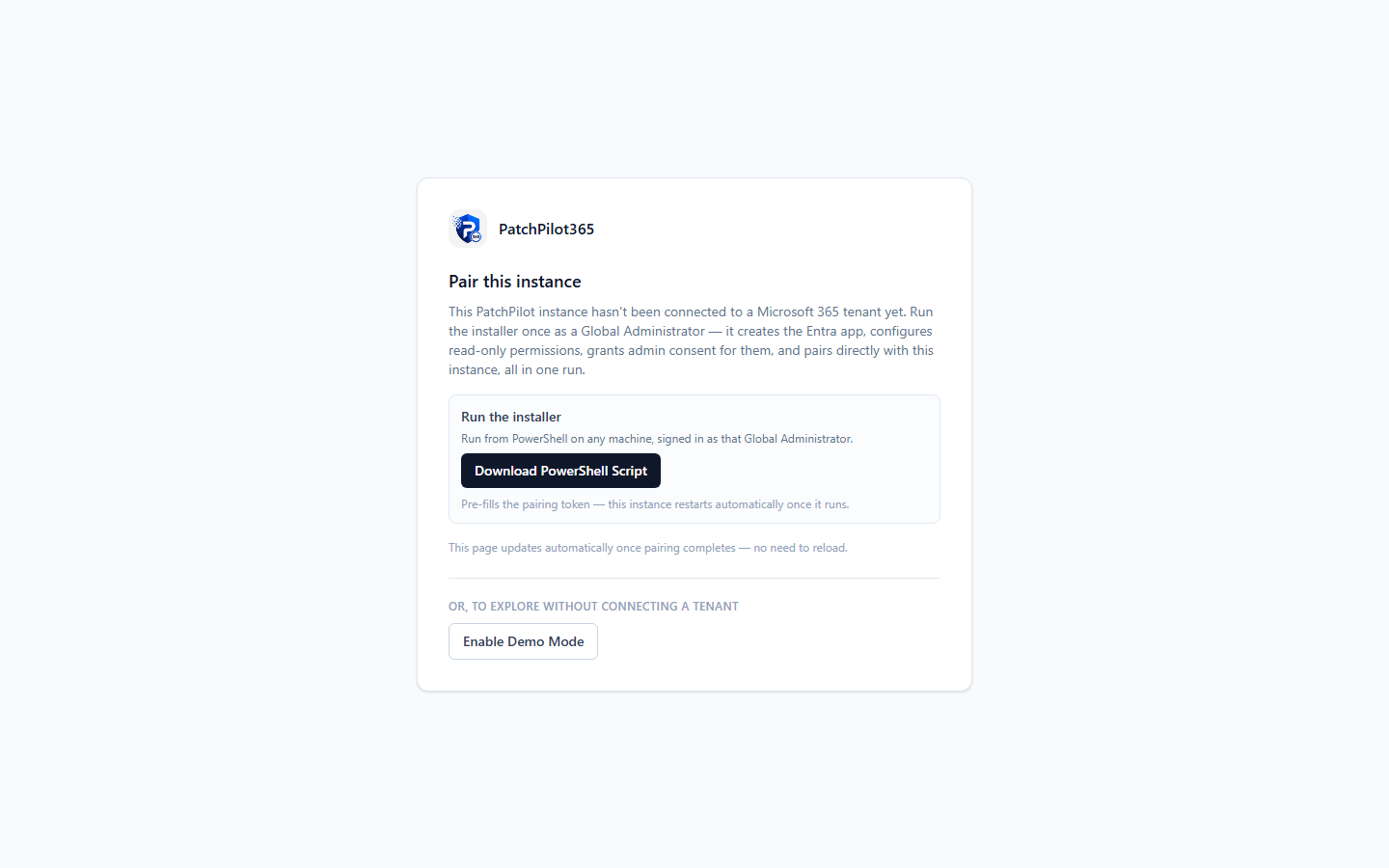
What pairing does
scripts/Deploy-PatchPilot.ps1 is the canonical, only supported way to
create the Entra app registration for a fresh instance:
- Creates the Entra app registration in your MSP’s home tenant.
- Configures the read-only Graph/Defender permissions and grants admin consent for them.
- Sets the Application ID URI (
api://<client-id>) and adds theaccess_as_userscope, so the app can complete the On-Behalf-Of token exchange with no manual portal clicks. - Pairs directly with this running instance using a single-use pairing token baked into the downloaded script — the instance restarts itself automatically the moment the script finishes, now holding real credentials.
Steps
- Open the running instance in a browser. If it hasn’t been paired yet, you’ll land on this screen automatically instead of a sign-in redirect.
- Click Download PowerShell Script. The download is personalized with this instance’s pairing token — don’t share it or reuse it against a different instance.
- Run the script from PowerShell, on any machine, signed in as a Global Administrator of the MSP’s own (home) tenant.
- Wait — the page polls automatically and moves on by itself once pairing completes. No reload needed.
The pairing token is single-use and time-limited; if it expires before you run the script, reload the page to generate a fresh download.
Or: explore without connecting a tenant
The same screen offers Enable Demo Mode as an alternative to pairing —
flips this instance into the same fictional-data mode covered in
Demo Mode, without
needing to run pnpm dev locally. This is one-way, the same as pairing
itself: there’s no in-app way to switch back to an unpaired state
afterward.
Why Azure Cloud Shell isn’t offered here
Earlier versions of this screen offered Azure Cloud Shell as a no-local- PowerShell alternative. It’s no longer offered: tenants with Security Defaults or Conditional Access policies enabled — the common case today — block Cloud Shell’s sign-in from satisfying those policies, so it stopped completing the pairing script reliably. Running the downloaded script from local PowerShell is the one supported path.
Next step
Once pairing completes, sign in for real and continue to the Navigating PatchPilot section, or jump straight to Onboard your first tenant.